


Google Photos
4.41.34M Reviews
App Specs
- Version
- Varies with Device
- Updated On
- License
- Free
- Downloads
- 10,000,000,000+
- Developer
- Google LLC
- Categories
- Photography
- Platform
- Android, iOS
Screenshots
 Analysis by AppCompare
Have you ever found yourself drowning in a sea of photos and videos on your phone, desperately seeking some order amidst the chaos? Well, let me introduce you to Google Photos, the app that swoops in like a superhero to rescue your digital memories.
A library that rewards good habits
What makes this photography app useful in everyday life is not a single editing trick; it is the way a searchable library can change what you do with pictures after taking them. I’m more likely to revisit a photo when I can find it quickly, and a date-based timeline gives me a practical starting point even when I have forgotten the file name or the exact day an event happened.
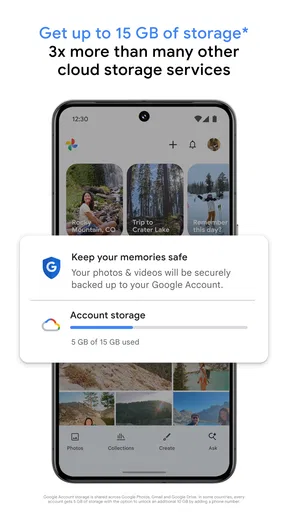
That convenience works best when I make a small choice early: whether I want the app to back up my camera roll. A backup can make photos available beyond the phone they were taken on, but it also means deciding which account should hold those copies and how much storage I’m comfortable using. I’d check those choices before treating the app as my only archive. Cloud access is helpful, but it is not the same thing as keeping an independent copy somewhere else.
Guides and Analysis on Google Photos
For a parent, that might mean finding a sequence of pictures from a school event without scrolling through every unrelated screenshot. For someone who travels, it can mean revisiting a day by its pictures rather than trying to remember which folder they used. I find that this kind of retrieval is the real time-saver: the app can turn a large, messy camera roll into something I’m willing to browse again.
Organizing Your Memories
When I first downloaded Google Photos, I was amazed at how effortlessly it organized my entire photo library. The app automatically arranges your photos by date and even creates albums based on locations or events. I found this feature particularly handy because, let's be honest, who has the time to manually sort through thousands of photos?
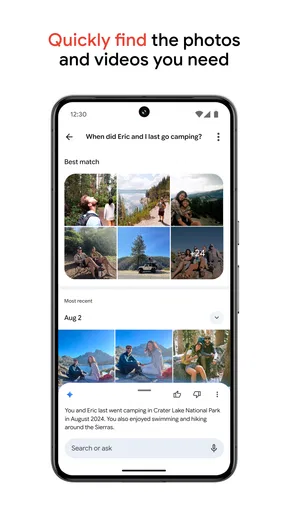
But the organization doesn’t stop there. Google Photos uses some seriously cool AI to recognize faces, places, and even objects in your pictures. So, if you're trying to find that cute dog photo from last summer, just type "dog" into the search bar and voilà! It's magic, I tell you.
Search is more useful than a perfect folder system
I wouldn’t rely on search as a substitute for every kind of filing, but it is a different approach from the traditional phone gallery, where I often have to remember the album or approximate date first. A plain-language search can be especially handy when I know what is in a picture but not when I took it. If I’m looking for a receipt, a particular meal, or a familiar place, describing the subject can be a quicker first attempt than browsing month after month.
Worth Reading Before You Choose

Baby Panda World Brings Quick Play to Modern Phones, but Its Game Library Feels Busy

ESPN’s Live Game View Makes Following Close Games Easier

QuizzLand Review: A Good Fit for Short Trivia Breaks, Not Every Player

Basketball Stars: Multiplayer Is Fast, but Can It Recover When Matches Go Wrong?

WEBTOON Turns Phone Updates Into a Better Reading Routine

Link to Windows Runs on Shared Habits, Not Social Feeds
There is a trade-off: search depends on the app interpreting the images in a way that matches my wording. If I need a specific picture for work or family, I still look through the results before sharing or acting on one. I also use albums when I want a deliberate collection that I can return to, rather than expecting every search to produce exactly the set I have in mind.
A useful habit is to treat search and albums as partners. Search helps me locate candidates from a broad library; an album gives a chosen group a stable place and a clear purpose. For example, I might search for pictures from a weekend outing, then gather the ones I actually want to show relatives. That takes a little judgement, but it is faster than manually sorting everything as soon as I take it.
Storage choices deserve attention
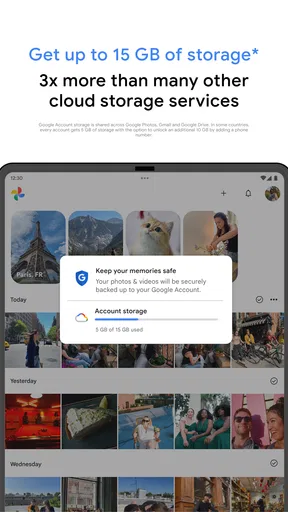
One of the standout features is the generous storage options. You can back up an unlimited number of photos and videos for free at a high-quality resolution. If you're a pixel perfectionist, there's also the option to store your content in its original quality, but that eats into your Google account storage. Still, it's great having the choice.
Because the app is free, it is tempting to switch backup on and forget about it. I would not do that without checking which quality setting is selected and keeping an eye on the account’s available space. The original text’s promise of unlimited high-quality backup is outdated, so I would not make a storage plan on that assumption. Storage conditions can change, and full-resolution files can use account capacity; if preserving every original matters to you, plan for that rather than discovering the limit when you need space.
Another practical distinction is between seeing a picture in the app and having a separate backup you control. A cloud library is convenient for browsing across devices, but I would keep a second copy of irreplaceable originals on a computer or external drive. That extra step is less effortless, yet it gives important family pictures a fallback if an account or device becomes unavailable.
Sharing without losing track of the audience
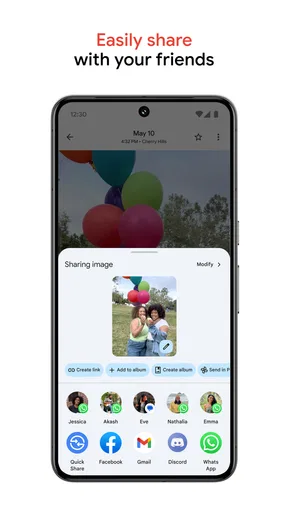
Sharing photos with friends and family is a breeze. You can create shared albums or simply send a link to specific photos. My family loves this feature because it makes it super easy to keep everyone in the loop, no matter where they are in the world.
For a normal get-together, a shared album can be more convenient than sending each image separately: everyone can look through one collection instead of searching across several conversations. Before sharing, I take a moment to check that I have selected the right pictures and the intended audience. A link is easy to pass along, which is exactly why I treat it as something to send deliberately rather than casually.
This is also where I would distinguish a family photo collection from a formal work handoff. The app is comfortable for everyday sharing, but if I need a tightly controlled review process, detailed file management, or a specific delivery format, I would choose a tool designed around that job. Convenience is a strength, not a reason to use one photo library for every purpose.
Editing for everyday fixes
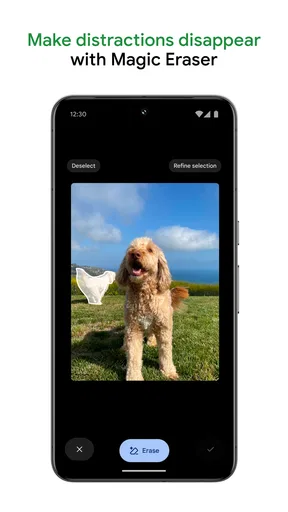
I'm no professional photographer, but the built-in editing tools make me feel like one. With just a few taps, you can adjust lighting, add filters, and even crop your photos. The app's suggestions for improvements are usually spot on, saving me a ton of time fiddling with settings.
I see the editor as a quick way to make a picture more presentable, not as a full replacement for a dedicated photo-editing workflow. If a shot is a little dark, needs a tighter crop, or would benefit from a simple look adjustment, making the change where I already browse the image is convenient. For careful retouching, layered work, or fine control over a finished image, I would reach for a more specialized editor instead.
One small but useful workflow is to keep the original in mind before making an edit. I can experiment with a crop or light adjustment when I’m preparing a picture to share, then judge whether the result still tells the story I wanted. That helps prevent an automatic suggestion from becoming an unquestioned choice: the best-looking edit is not always the most faithful one.
Quick keepsakes, with sensible expectations
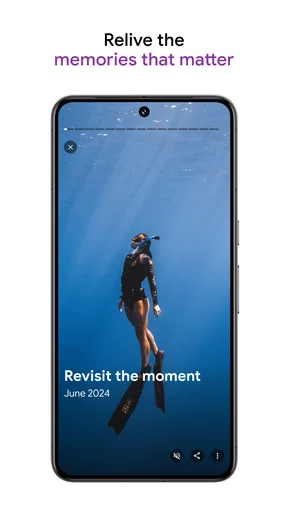
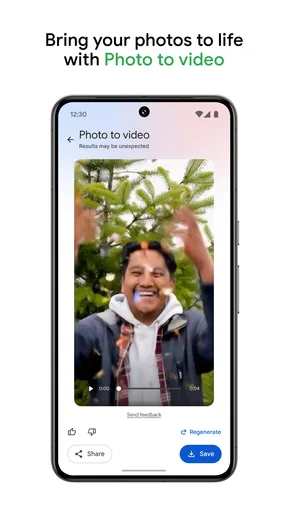
And if you're feeling adventurous, try the "Movies" feature. It automatically creates short videos from your clips and photos, complete with music and effects. It's perfect for creating those quick highlight reels of your latest vacation.
I’d use an automatic movie as a fast keepsake, especially when I want to send a short recap without opening a separate editing app. It is a different goal from building a carefully paced travel film: an automatic selection can save time, but I would still watch the finished result before sharing it. If the order, soundtrack, or choice of moments matters a lot, manual editing gives me more say.
A realistic example is coming home from a weekend away with a mixture of scenery, meals, and short clips. I can first search or browse the trip, choose a handful of moments, and let the app make a quick shareable recap. If I want a polished piece for a public presentation, I would spend more time in a dedicated video editor. That division keeps the convenient option convenient instead of expecting it to do a different job.
Privacy is a set of choices, not a slogan
In today’s digital age, security is a big deal. Google Photos ensures your memories are safe with a secure backup, and you have full control over your privacy settings. You can easily manage who sees your photos and what information is shared.
I’d make privacy checks part of setting up any photo library. Think about which account you use, which pictures you choose to share, and whether a shared collection is meant for a small group or a wider audience. Those questions matter more than assuming that a convenient cloud library automatically matches every person’s idea of private.
For sensitive images, I would be especially deliberate about sharing and account access. I also avoid treating a link as though it were the same as a private conversation: once something is easy to forward, I want to be sure I am comfortable with that possibility. This is not a reason to avoid sharing ordinary family photos; it is a reason to pause before distributing anything personal.
And if you're worried about losing your photos, rest easy. The app backs everything up to the cloud, so even if you lose your phone, your memories are safe and sound.
Who will get the most out of it
I think this app suits people who take pictures often, use more than one device, or want a fast way to revisit a growing camera roll. It is especially appealing if you would rather search for a subject than maintain a carefully named folder for every occasion. A family that wants to gather everyday snapshots in one place can also benefit, provided everyone is comfortable with the account and sharing choices involved.
It is less compelling for someone who keeps a small library, never wants cloud backup, or prefers to organize every file manually into folders they control. A person who needs professional editing precision may find the built-in tools too simple, while someone who wants a fully local archive may prefer the phone’s native gallery or a desktop library. I would not call those users wrong; they simply value control or specialization more than quick discovery.
Compared with the standard gallery app, Google Photos puts more emphasis on search, backup, and sharing across a library than on being a basic viewer for files stored on one device. Compared with a dedicated editor, it favors speed and convenience over deep creative control. That makes it a strong middle ground for ordinary photography, but not an ideal single tool for every photographer or every privacy preference.
A few practical questions to settle first
People often ask whether they need to pay to start using it. The app is free, which makes it easy to try, but the important follow-up is how your chosen backup quality uses your Google account storage. I would check the current setting and available space before relying on it as the home for a large collection.
Another common question is whether photos remain accessible if a phone is lost. A backed-up library can be reached through the account on another device, which is a major advantage over keeping the only copy on a handset. I still recommend a separate copy of especially important originals, because a cloud account should not be the only place that holds something irreplaceable.
People also wonder whether they can find old pictures without remembering dates. Search gives them a way to try a subject, object, or place instead of scrolling from one month to another. I treat the results as a helpful shortcut, then check the actual images before choosing one, especially when several similar photos appear.
If you are deciding between this and a phone’s built-in gallery, ask what frustrates you most. If it is finding and sharing pictures across a busy library, the Google approach may fit better. If it is keeping everything local and using a familiar, device-specific layout, the native gallery may feel simpler. Neither choice is automatically safer or more convenient for everyone; it depends on how you want your collection managed.
Where it fits in the app landscape
As a photography app from Google LLC, Google Photos has a broad, familiar role rather than a narrow professional one. Its average rating is 4.4 from around 54 million ratings, and it has been installed over 10 billion times. Those figures suggest that many people use it, but popularity does not settle whether its backup and account-based approach is right for you.
It is free and rated for Everyone, so the initial barrier to trying it is low. It was released on May 28, 2015, and has become a familiar option for people who want one place to browse, search, and share pictures. I would still make the decision based on your own habits: the best photo app is the one whose organization and backup choices you understand and are willing to maintain.
My clearest recommendation is to start with a small, deliberate setup rather than switching every setting on without looking. Confirm the account, review backup quality, try a few searches, make one album, and test sharing with someone you trust. Those simple checks show quickly whether the app’s way of handling a library fits your routine.
All in all, Google Photos is like having a personal assistant for your photos. It makes organizing, editing, and sharing your memories a walk in the park. So, if you haven't already, give it a spin. Your photos will thank you!
Pros
- Seamless cloud backup for photos.
- Powerful AI for photo organization.
- Free storage with Google account.
- Easy sharing with direct links.
- Integrated photo editing tools.
Cons
- Limited free storage after 15GB.
- Editing tools can be basic.
- Requires internet for backup.
- Privacy concerns with data storage.
- No desktop app for offline use.
FAQs for Google Photos
What is Google Photos and how does it work?
Google Photos is a cloud-based photo and video storage service that allows users to back up their multimedia content online. It offers features such as automatic organization, powerful search options, and easy sharing capabilities. The app uses advanced AI to categorize images, making it simple to find specific photos by person, place, or object.
Is Google Photos free to use?
Yes, Google Photos offers free storage with certain limitations. Users can store an unlimited number of photos and videos at 'High Quality,' which compresses files to save space. However, storing at 'Original Quality' counts against your Google Account storage quota, which is shared across other Google services.
How secure is my data on Google Photos?
Google Photos employs robust security measures to protect user data, including encryption in transit and at rest. Users can also enable two-factor authentication for added security. However, it's important to note that no online service can guarantee absolute security, and users should be mindful of privacy settings and sharing options.
Can I access Google Photos on multiple devices?
Yes, Google Photos is accessible from any device with internet connectivity. You can use the app on Android and iOS devices, or access it via a web browser on your computer. This cross-platform accessibility ensures you can view, manage, and share your photos and videos anytime, anywhere.
What happens if I delete a photo from Google Photos?
When you delete a photo from Google Photos, it moves to the Trash, where it will be stored for 60 days before being permanently deleted. During this period, you can restore the photo if needed. Once permanently deleted, the photo cannot be retrieved, so it's important to be certain before finalizing deletions.


